Transparent PNG · official CLI
PhotoCraft CLI transparent PNG: crop, add text and verify alpha
Run the recorded official CLI workflow on the original transparent product illustration. Check actual dimensions and alpha after crop, text and export, while keeping unverified desktop operations separate.
Build, environment and task outcome
| Recorded field | Value |
|---|---|
| PhotoCraft version | PhotoCraft CLI 0.7.0 — official macOS Universal release |
| Operating system | macOS 15.5 (24F74) |
| Processor / architecture | Apple M2 · arm64 |
| Test date | 2026-10-11 |
| Task outcome | Passed |
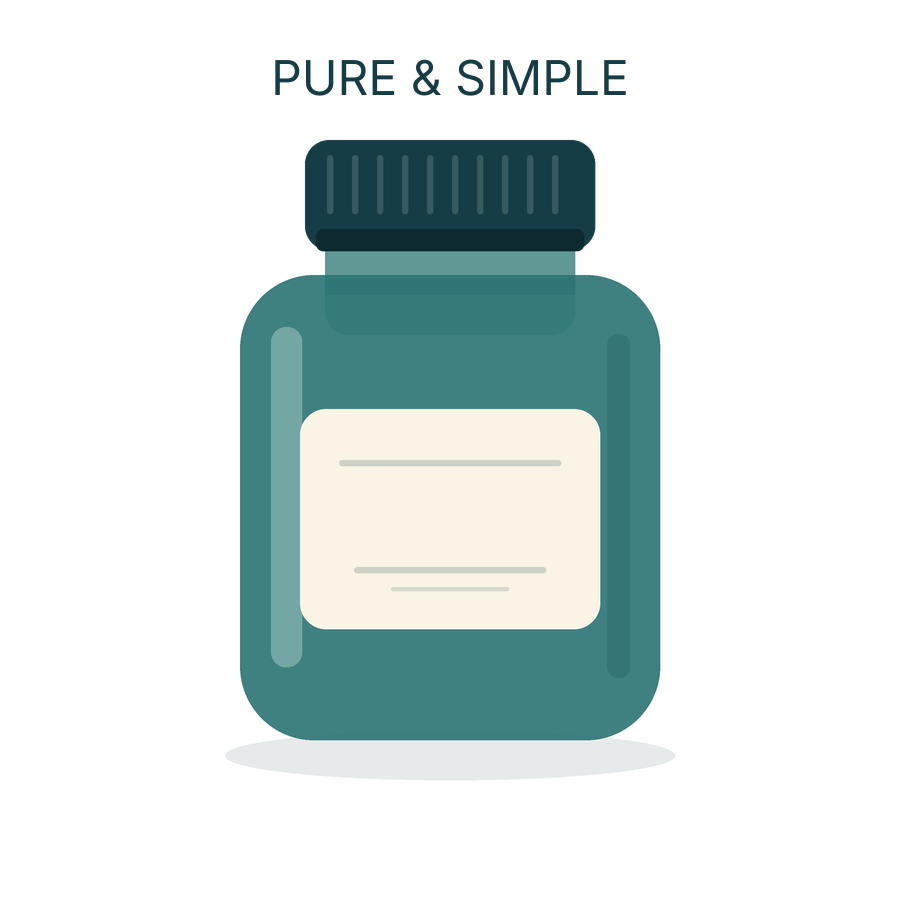
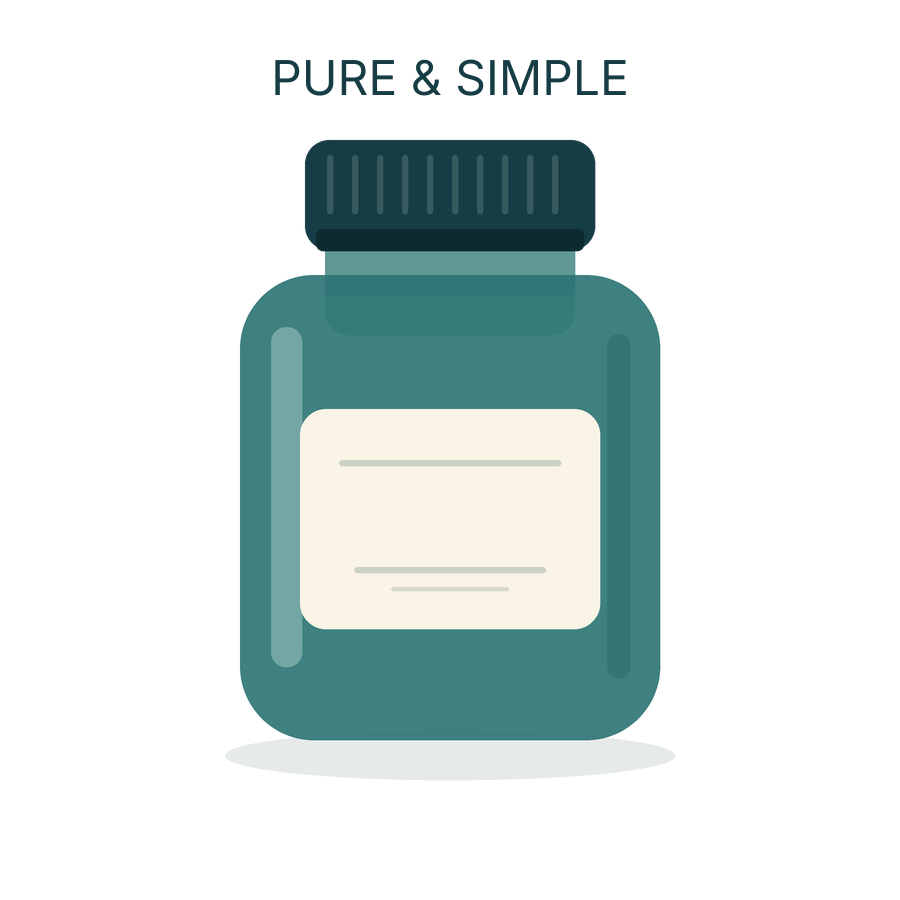
The original 1200 × 900 illustration was cropped to 900 × 900 without resampling, then given a PURE & SIMPLE headline. The actual exported RGBA PNG kept all four corners transparent and preserved partial alpha outside the new title.
The actual editing entry point
The official CLI cropped the existing transparent PNG and created a separate type layer. No background-removal or desktop crop operation is claimed.
The exact input material
Download both reproducible workflows
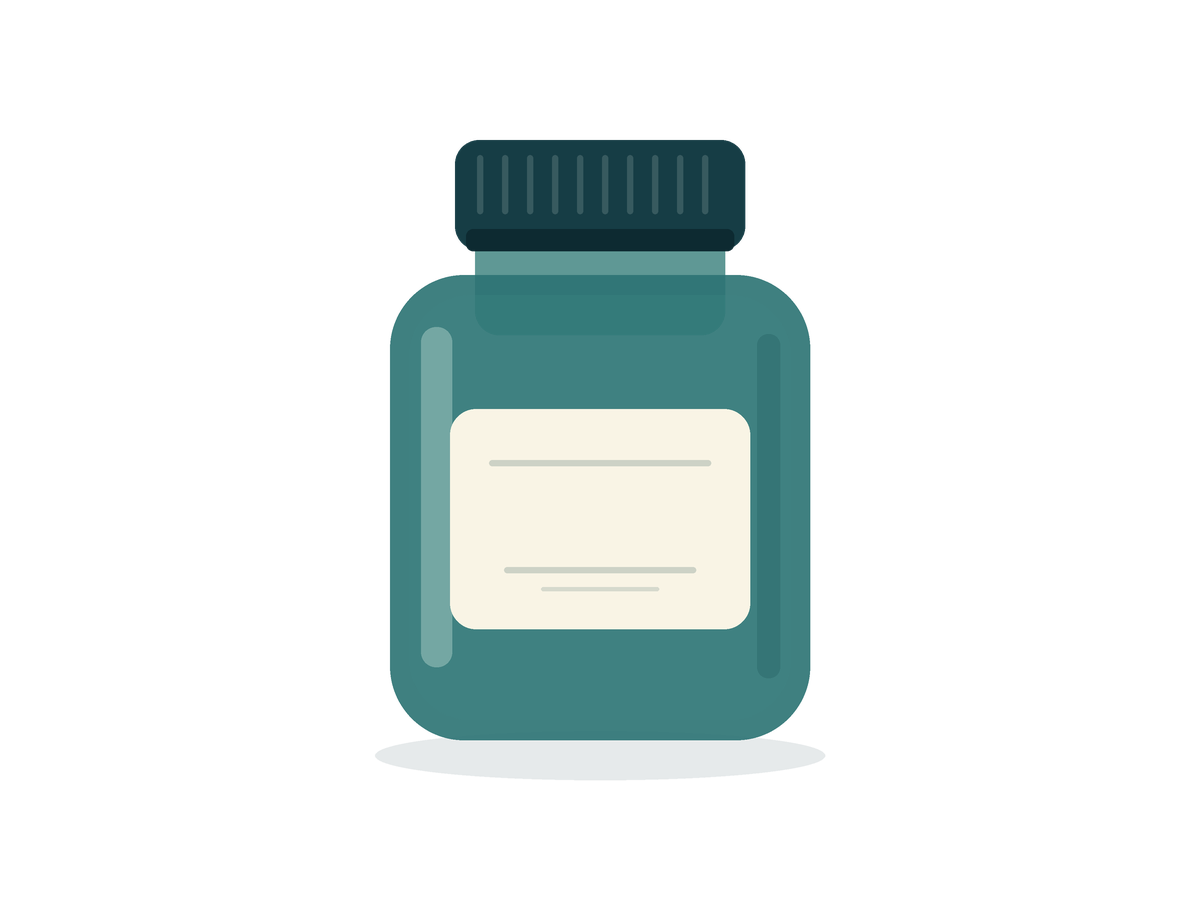
Original transparent product illustration
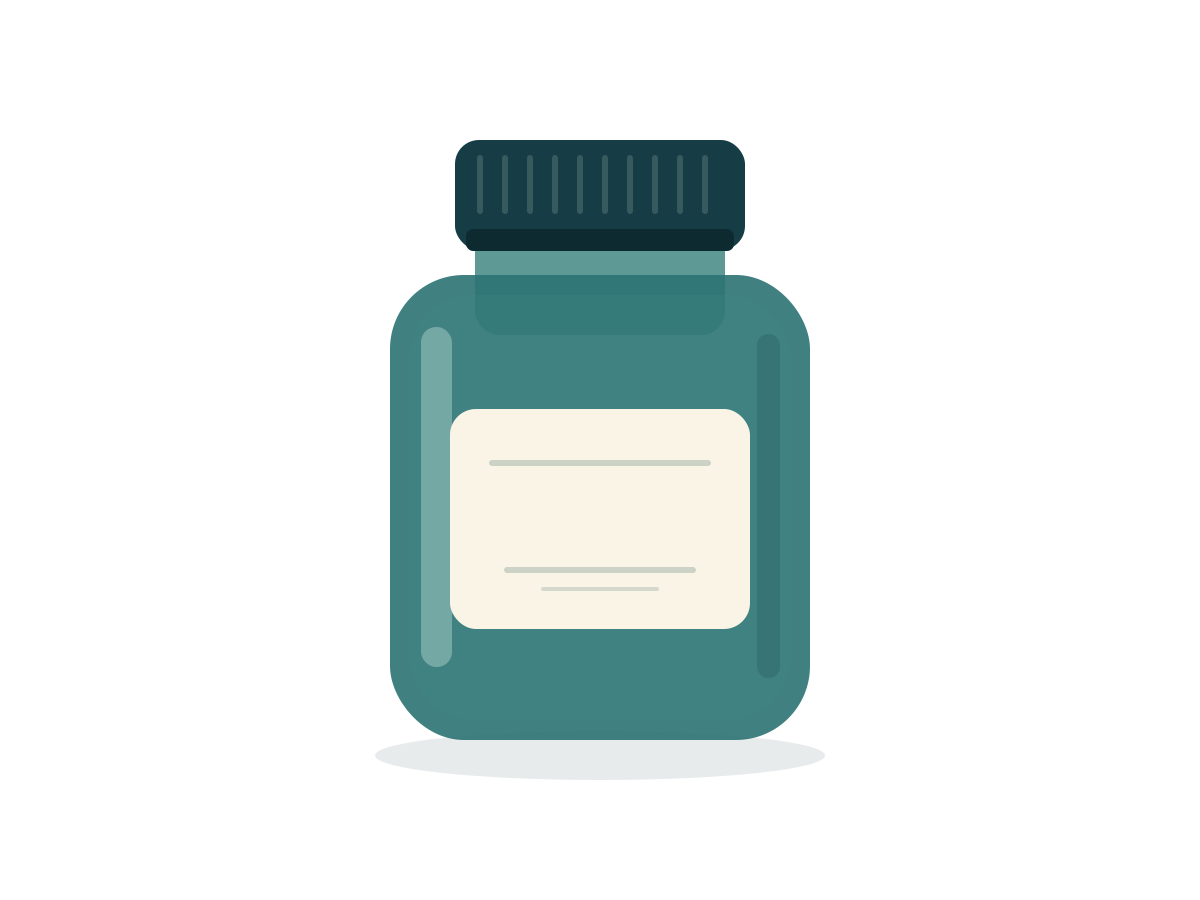
An original geometric bottle with existing transparency, a blank label and a soft shadow. It is not a photograph, branded product or background-removal result.
Download the exact input file · 1200 × 900 px · CC0
Download the original product-practice pack · Download the editable source SVG · Read the CC0 license
Prepare the official CLI and working directory
Use the official PhotoCraft CLI 0.7.0 macOS Universal package linked below. The commands assume its photocraft-cli executable is available on PATH. Extract the workflow pack and run from the directory containing practice/. Keep the originals and write all results to practice/output/. This is a command-line workflow, not a record of typing into the desktop application.
Download this release’s official macOS Universal CLI ZIP · photocraft-cli-0.7.0-macos-universal.zip
The commands below apply to the recorded macOS environment. If the CLI is not on PATH, replace photocraft-cli at the start of each command with the path to the unpacked executable. Run from the specified working directory with the stated input and output names. The desktop application and CLI are different entry points.
The actual CLI steps and commands
- Crop the transparent margins and add a headline
Crop x=150, y=0, width=900, height=900 removes 150 pixels from each horizontal edge. Omitting targetWidth and targetHeight avoids resampling. The new headline is a true Inter-Regular 48 pt type layer, centred at (450,95).
photocraft-cli run practice/source/product-transparent.png --cmd image.crop --params '{"x": 150, "y": 0, "width": 900, "height": 900, "angle": 0, "deleteCroppedPixels": true}' --cmd type.create --params '{"x": 450, "y": 95, "text": "PURE & SIMPLE", "font": "Inter", "size": 48, "color": "#163d45", "align": "center", "name": "PURE & SIMPLE — editable headline"}' --cmd type.info --params '{}' --out practice/output/product-transparent-edited-cli.psd - Export the actual saved PSD as PNG
The output is PNG rather than JPEG. The downloaded PNG contains an alpha channel; the website checkerboard is only a display background.
photocraft-cli convert practice/output/product-transparent-edited-cli.psd practice/output/product-transparent-edited-cli.png - Reload the PSD and export a second copy
The second PNG was compared pixel for pixel with the first. The original source was retained and its hash remained unchanged.
photocraft-cli info practice/output/product-transparent-edited-cli.psd --compact
photocraft-cli convert practice/output/product-transparent-edited-cli.psd practice/output/product-transparent-edited-cli-reopened.psd
photocraft-cli convert practice/output/product-transparent-edited-cli-reopened.psd practice/output/product-transparent-edited-cli-reopened.png
Actual outputs and individual checks
| Check | Result | Observation |
|---|---|---|
| Exact crop, without resampling | Passed | 900 × 900. The saved pixel layer matches the exact (150,0)-(1050,900) source crop. |
| Separate headline layer | Passed | Two layers: pixel and type. PURE & SIMPLE remains a genuine type string, Inter-Regular 48 pt. |
| Transparency and partially transparent pixels | Passed | RGBA output, all four corner alpha values are 0; 153,109 pixels have partial alpha. Outside the headline bounds, RGBA and alpha match the cropped source exactly. |
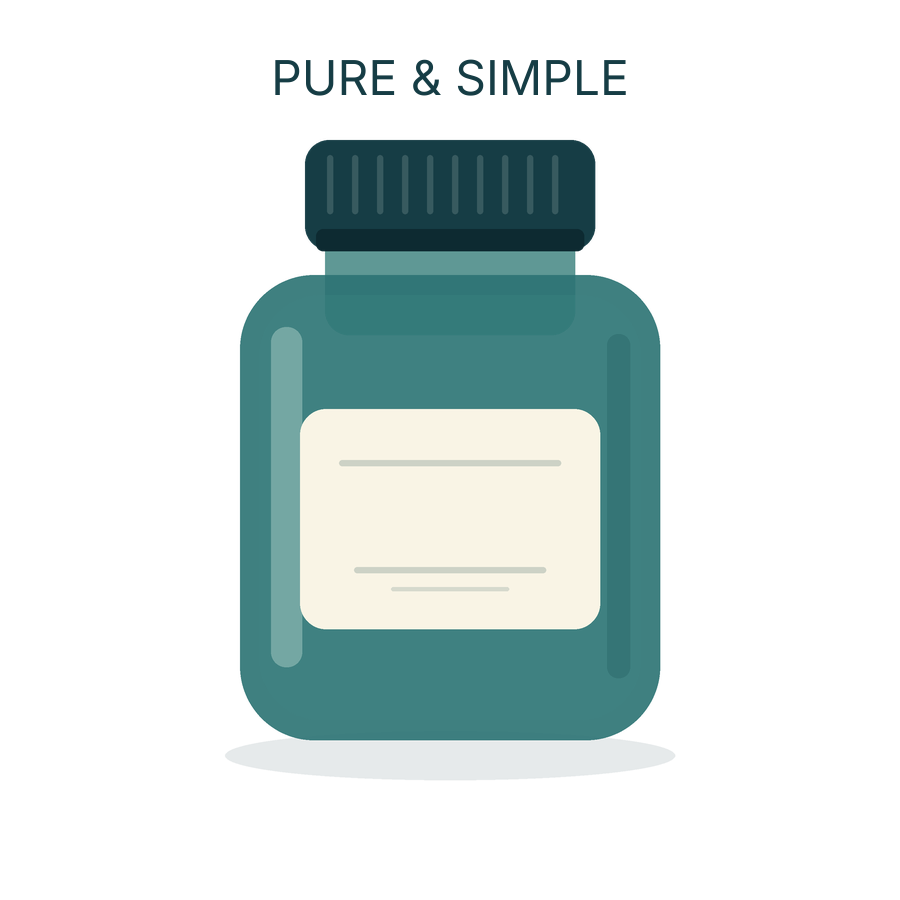
| PNG exported again after reopening | Passed | The reopened-project PNG is pixel-identical to the first export. |
| Independent decoded PSD preview comparison | Partly completed | Raw RGBA is not identical: hidden RGB differs in transparent pixels. Alpha is identical; compositing on white and black differs by at most one 8-bit colour level. |
| Desktop crop, text and export controls | Not tested | The recorded workflow used official CLI commands; desktop menu interactions and background removal were not verified. |
- product-transparent-edited-cli.psd · 334,222 bytes
- product-transparent-edited-cli.png · 29,916 bytes
- product-transparent-edited-cli-reopened.psd · 334,222 bytes
- product-transparent-edited-cli-reopened.png · 29,916 bytes
Scope and unverified behaviour
One illustration and one headline were tested on this Mac. No desktop control, real-photo cutout, JPEG transparency, print colour profile or Photoshop round-trip was tested.
The input is an original geometric product illustration with existing transparency, not a photograph of a real item. This workflow does not demonstrate background removal or accurate product photography. Only the recorded export and alpha checks are claimed.
For the basic document workflow, start with the first-edit record.